
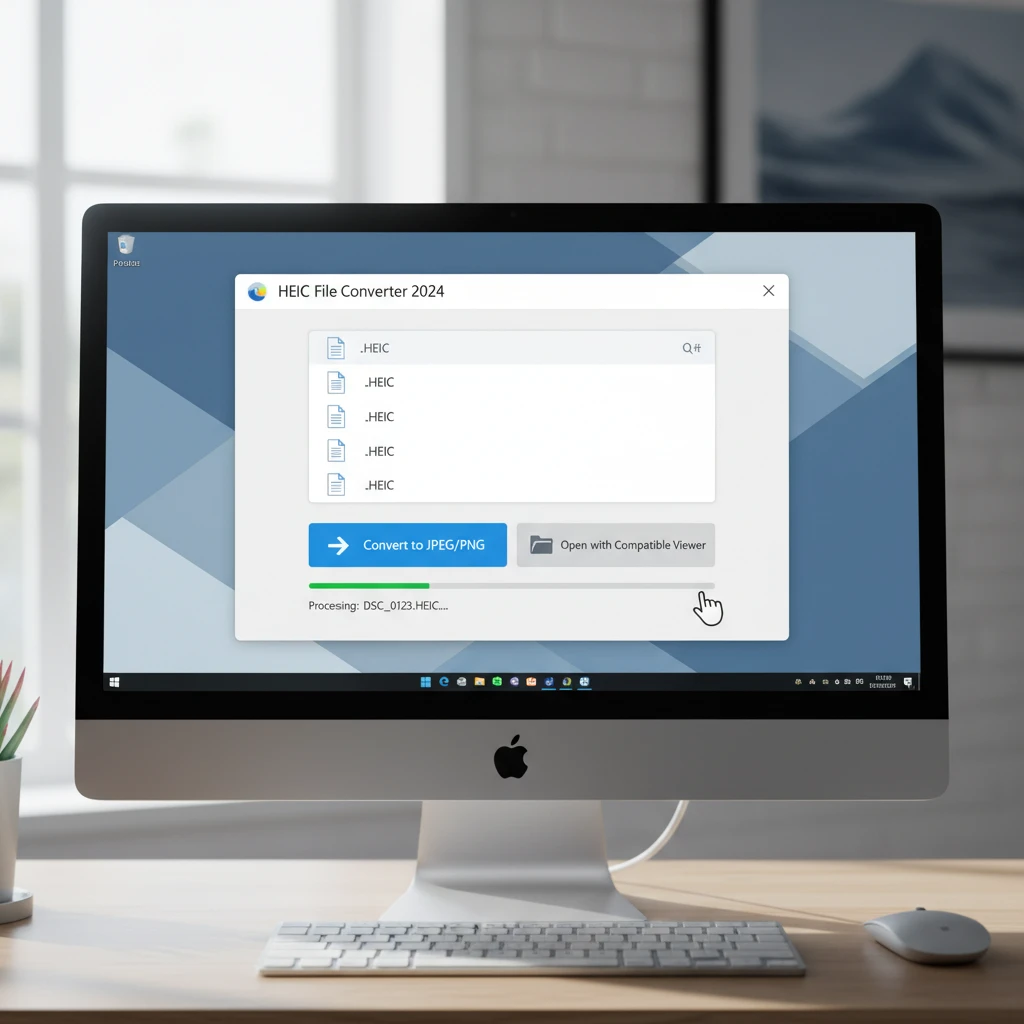

High Efficiency Image Container (HEIC) files have become increasingly common since Apple adopted this format as the default for iPhone cameras starting with iOS 11. While this format offers excellent compression and image quality, Windows users often find themselves puzzled when encountering these files. If you’ve ever wondered how to open HEIC files on your Windows computer, you’re in the right place.
Understanding HEIC Files: What You Need to Know
HEIC (High Efficiency Image Container) is a modern image format developed by the Moving Picture Experts Group. It’s designed to store images more efficiently than traditional formats like JPEG, offering better compression while maintaining superior image quality. Apple embraced this technology to save storage space on iPhones and iPads, but this decision created compatibility challenges for users who share files across different platforms.
The primary advantage of HEIC files lies in their ability to compress images to roughly half the size of equivalent JPEG files without sacrificing visual quality. Additionally, HEIC supports advanced features like storing multiple images in a single file, transparency, and 16-bit color depth.
Why Windows Struggles with HEIC Files
Windows doesn’t natively support HEIC files in older versions, which creates the infamous “can’t open this file” error that frustrates many users. This incompatibility stems from licensing issues and the relatively recent adoption of the format. However, Microsoft has made significant strides in recent updates to address this limitation.
Native Windows 10 and 11 Solutions
Recent versions of Windows 10 and Windows 11 include built-in support for HEIC files, but this feature isn’t automatically enabled. Here’s how to activate it:
- Open the Microsoft Store on your Windows computer
- Search for “HEIF Image Extensions” or “HEVC Video Extensions”
- Install both extensions (some may require a small fee)
- Restart your computer to complete the installation
- Your Photos app should now display HEIC files correctly
Once installed, you’ll be able to view HEIC files using the default Windows Photos app, and the files will display thumbnails in File Explorer.
Free Methods to Open HEIC Files on Windows
Using Online Converters
Online conversion tools offer a quick solution for occasional HEIC file access. These web-based services convert your HEIC files to more common formats like JPEG or PNG. Popular options include:
- CloudConvert: Supports batch conversion and maintains image quality
- Convertio: User-friendly interface with drag-and-drop functionality
- Online-Convert: Offers advanced settings for compression and quality adjustment
When using online converters, be mindful of privacy concerns, especially when dealing with sensitive images. Always choose reputable services and read their privacy policies carefully.
CopyTrans HEIC for Windows
CopyTrans HEIC is a lightweight, free solution that integrates seamlessly with Windows Explorer. After installation, HEIC files will display thumbnails and can be opened with any image viewer. The software also enables right-click conversion to JPEG format directly from the context menu.
Installation process:
- Download CopyTrans HEIC from the official website
- Run the installer with administrator privileges
- Follow the setup wizard instructions
- Restart Windows Explorer or reboot your computer
Premium Software Solutions
Adobe Creative Suite
Adobe Photoshop and Lightroom support HEIC files natively in recent versions. If you’re already subscribed to Adobe Creative Cloud, you can open, edit, and export HEIC files without additional software. These professional tools offer advanced editing capabilities while preserving the original image quality.
IrfanView with Plugins
IrfanView, a popular free image viewer, can handle HEIC files when paired with the appropriate plugin pack. Download the main IrfanView application and the All Plugins package to enable HEIC support. This combination provides a fast, lightweight solution for viewing various image formats.
Converting HEIC Files: Best Practices
When converting HEIC files to other formats, consider these important factors:
Quality Preservation
Choose conversion settings that maintain image quality. While JPEG is the most compatible format, PNG offers lossless compression if file size isn’t a primary concern. Adjust quality settings based on your intended use – web sharing might require smaller files, while printing demands maximum quality.
Batch Processing
For multiple files, batch conversion saves significant time. Many tools support folder-based processing, allowing you to convert entire photo albums simultaneously. Set consistent output parameters to maintain uniformity across converted images.
Speaking of downloading and managing media files, if you frequently work with social media content, you might find tools like instagram post download useful for acquiring images in various formats for your projects.
Troubleshooting Common Issues
Files Won’t Open After Installing Extensions
If HEIC files still won’t open after installing Microsoft’s extensions, try these solutions:
- Verify that both HEIF and HEVC extensions are properly installed
- Update Windows to the latest version
- Reset the Photos app through Windows Settings
- Clear the thumbnail cache using Disk Cleanup
- Check file associations in Default Apps settings
Conversion Quality Issues
Poor conversion quality often results from inappropriate settings or low-quality conversion tools. Use reputable software with manual quality controls, and avoid over-compressing images. When possible, convert to PNG for graphics with sharp edges or JPEG for photographs with smooth color gradients.
Alternative Image Viewers for HEIC Files
XnView MP
XnView MP is a powerful, free image viewer that supports over 500 formats, including HEIC. It offers batch processing capabilities, basic editing tools, and excellent organizational features for managing large photo collections.
FastStone Image Viewer
This lightweight viewer provides HEIC support through regular updates and offers features like slideshow creation, basic editing tools, and efficient thumbnail generation. It’s particularly well-suited for users who need a simple, fast solution.
Future-Proofing Your Image Workflow
As HEIC adoption continues growing, consider these strategies to streamline your workflow:
Standardizing Formats
Establish consistent file format standards for your projects. If compatibility is crucial, configure devices to save images in JPEG format by default. For iPhone users, this setting is found in Settings > Camera > Formats, where you can select “Most Compatible” instead of “High Efficiency.”
Automated Conversion Systems
Set up automated workflows using tools like IFTTT or Zapier to convert HEIC files automatically when they’re added to specific folders or cloud storage services. This approach ensures consistent format availability without manual intervention.
Security Considerations
When working with HEIC files, especially through online converters or third-party software, maintain awareness of security implications:
- Verify software authenticity before installation
- Use offline conversion tools for sensitive images
- Check privacy policies for online services
- Keep conversion software updated for security patches
- Consider watermarking or metadata removal for shared images
Professional Recommendations
For professional photographers and content creators, investing in comprehensive image management software often proves worthwhile. Programs like Adobe Bridge, Phase One Capture One, or Luminar provide robust HEIC support alongside advanced cataloging and editing capabilities.
These professional tools offer several advantages:
- Non-destructive editing capabilities
- Advanced color management
- Batch processing with custom presets
- Integration with professional workflows
- Comprehensive metadata management
Conclusion: Mastering HEIC File Management on Windows
Opening HEIC files on Windows has evolved from a significant challenge to a manageable task with multiple solution paths. Whether you choose Microsoft’s native extensions, third-party software, or online conversion tools, the key is selecting the method that best fits your specific needs and workflow requirements.
For casual users dealing with occasional HEIC files, the free Microsoft Store extensions provide the most straightforward solution. Power users and professionals might benefit from dedicated image management software that offers additional features beyond basic file viewing.
As technology continues advancing, HEIC support in Windows will likely improve further, making these workarounds less necessary. Until then, the methods outlined in this guide ensure you’ll never be stuck unable to access your important image files, regardless of their format.
Remember to regularly update your chosen solutions to maintain compatibility with new HEIC variants and Windows updates. With the right tools and knowledge, HEIC files become just another image format in your digital toolkit, rather than a source of frustration.
Leave a Comment